





Have Us: Call You Back

Call Us: UK: +44 1937 541 553

Email Us: info@smarterbusinessprocesses.com

Other Options: Contact Us

Smarter training adjusted to suit your real needs

At Smarter Business Processes we offer a wide variety of Smartsheet training courses and packages.

Learn More

Our team of certified consultants provides training and remote support to clients around the globe, improving their Project Management, Workflow and Process Management.

Smarter Business Processes is Cyber Certified

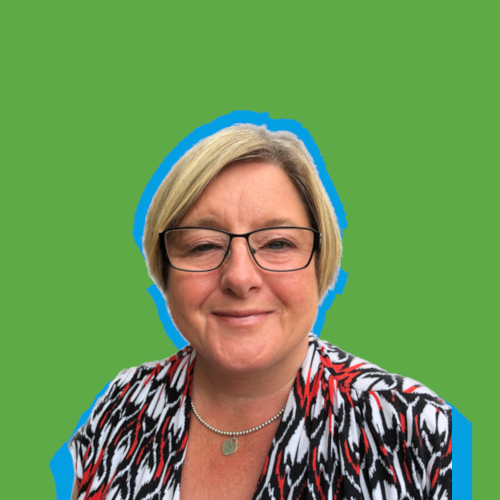
Emma Stevens

Office Manager

Emma has 27 years of financial and customer experience and brings processes and order to our office.

Emma's customer service knowledge ensures all of our clients office enquiries are dealt with professionally, efficiently and quickly. She will leave no stone unturned to get to the bottom of a query!

When not at her desk Emma enjoys spending time with her husband and daughter as well running Brownies and Rainbows for Girlguiding UK in her local area.

Etienne Mermillod

Software Development Manager

Etienne is a seasoned ASP.NET Core Full Stack Developer. He takes great pride in building world-class applications while carefully considering the needs of its users and ease of use.

Originally from France, Etienne now calls Canada Home, where he is part of SBP Canada as a member of the API Solutions Development Team.

Etienne is a well-seasoned traveler and has visited many countries where he usually takes the path less traveled in order to backpack around and soak in the local cultures.

When not coding away, you may expect Etienne to be playing with his huge and fluffy dog Indianna or gaming away on League of Legends

David Bower

Smartsheet, Airtable and AppSheet Consultant

David is a hugely experienced Consultant, Customer Care Specialist and Client Account Manager.

In his spare time, David plays guitar, is learning to ride a motorcycle and, when it’s not too cold, can often be found tinkering in the garage. He also intends to learn to play the piano too - one day

Debbie Sawyer

Chief Smartsheet Solutions Officer (CSSO)

BSc (Hons) Computing, ITIL Foundation, Smartsheet Certified User, Aligned Sales Certified and Professional Services Certified.

Seasoned Smartsheet consultant and Training professional, Debbie’s creativity, attention to detail, willingness to deliver solutions to fully meet customer requirements and her personable manner earn her excellent client feedback.

When not working, Debbie likes to relax by spending quality time with her family. Living in the New Forest sees her taking many walks through the woods and down to the sea fronts at Lepe and Calshot. Debbie is also a keen hula hooper and has been hooping now for more than 7 years! She owns at least 10 hoops and enjoys a great workout helping her friend to run a hula hoop fitness class.

Dr James Harris

Chief Technology Officer

An experienced IT professional, James' prior work spans diverse environments from the white heat of launching information systems in one of the world's busiest airports, to industry leading tech startups. He also has extensive experience as a Finance Manager. James brings a keen insight and and flair for problem solving to every project.

Outside of work, James writes comedy, and has had many television credits over the past couple of decades on shows such as Horrible Histories and Russell Howard's Good News. He retains a burning ambition to be as funny as his wife and daughter.

Ph.D. Biochemical Physics, IT and Accounting professional.

Gwen Rymill

Communications Director

Co-founder of Smarter Business Processes, Gwen’s multi tasking roles include ensuring our clients receive the very best in customer care, while responsible for sales and marketing and partner liaison. Just don’t expect to get the cup of tea she promised you!

Away from work Gwen enjoys cycling, pilates, tap dancing and just loves baking.

Richard Rymill

CEO

Co-Founder and Lead Consultant, Richard set up SBP in response to worldwide demand from businesses wanting to implement their own Smarter Business Processes. His rapidly expanding team of experienced Smartsheet and AppSheet Consultants and Trainers share the company's values of achieving improved efficiencies and collaboration by putting people first and releasing them from unnecessary repetitive activities so they can enjoy their work again and focus on what matters to them.

When not at his desk, Richard can be found cycling, swimming and when the opportunity permits, sailing and flying.

New in Smartsheet: See Images in your Sheets

We’re excited to announce our newest feature: inserting images directly into Smartsheet cells.

Viewing images in the grid (instead of clicking to open multiple attachments) provides instant context surrounding a project, as well as a time-saving method of feedback and direction. Here’s how it works:

How to add an image to a cell

In Excel and Google Sheets, images placed in a spreadsheet aren’t actually inserted into a cell. They float on the surface as an overlay. What’s the difference? Images floating over a cell don’t stay in the context of their surroundings. Should a team member add a row or column, the image will not move with the intended row or column, thereby removing it from its respective information. What’s more, images must be manually sized to fit within the confines of a cell. Our newest upgrade adheres the image to it’s intended cell, resulting in immediate alignment with its context.

Want to try for yourself? Open a sheet, and let’s get started:

  1. Right-click the cell you wish to contain an image.
  2. Choose Insert Image… from the dropdown menu.
  3. Then, pick the source of your image.

Image oneIt’s as easy as 1, 2, 3! Even better — larger images scale down (while keeping their aspect ratio) to fit a column width without resizing. An image will never scale up to fit a larger column, thereby keeping its integrity. And as with wrapped text, a row height will automatically adjust to accommodate an image’s size.

Our mobile application is just as intuitive. Because display resolution is much higher on mobile devices, images viewed in the mobile app will not enlarge beyond their actual size. The layout may look a bit different from the desktop version, but your image will never be contorted.

Keep in mind, one cell holds one image. Inserting a second image will override the first.Compatible file formats include:

Simplifying how you work

One of the best qualities of Smartsheet is that it works the way you do. Allowing images in the grid won’t change any of your existing processes; instead, they’ll gain momentum, thanks to the real-world application of this handy visual tool. Here’s just a skosh of the possibilities it affords:

Marketing and designImage two


Asset libraries: Provide an instant visual lookbook to customers, new hires, or potential clients. Add notes, notes, project context, and descriptions for visual support.

Design requests and feedback: Eliminate indefinite emails back and forth for feedback and direction. Create a column for design versions, and add a column next to it for instant feedback. Then, compare two versions side by side.

Style guides: Create company or client style guides with visual examples, definitions, and applications outlined all in one place.

Image three

Real estate and construction

  • Property management: For a quick reference before property tours, create a roster of all available properties. Or manage maintenance and inspections with photographed documentation.
  • Construction punch list: Have visual documentation of the contracted job for faster confirmation of services.
  • Blueprints and sketches: Create statements of work before a job showcasing your intentions. It’s much easier to get an idea across when an image accompanies it.

The sky’s the limit

Image four


Visualize the possibilities give Smartsheet a  30-day free trial OR if you’d like help with your Smartsheet Design and Development, tell us what you need so we can suggest suitable solutions using our 1 hour free consultancy – Arrange it now !

Image five