









Business Process
Automation Consultants

Duration in Hours and Critical Path Are Coming Soon to Smartsheet

Identify the Critical Path and Specify Time with Minute-Level Precision
Smartsheet’s most requested features are coming soon.
Our customers continually help shape Smartsheet, and many have been asking for the more robust project management features of duration in hours and critical path. We’ve heard your feedback and have appreciated your patience.
Duration in minutes, hours and weeks, as well as critical path, brings Smartsheet to the next level in terms of project management and team collaboration. These new features give project managers and owners more control to coordinate even bigger, more complex projects quickly and efficiently.
Here’s more information about the new features:
Specify Duration in Minutes, Hours, or Weeks
You will soon have a new level of granular control over project schedules by specifying duration of project tasks in not just days, but in minutes (‘m’), hours (‘h’), partial days (0.5), or weeks (‘w’). You will even be able to mix and match units, like 3d 4h or 2d 30m.
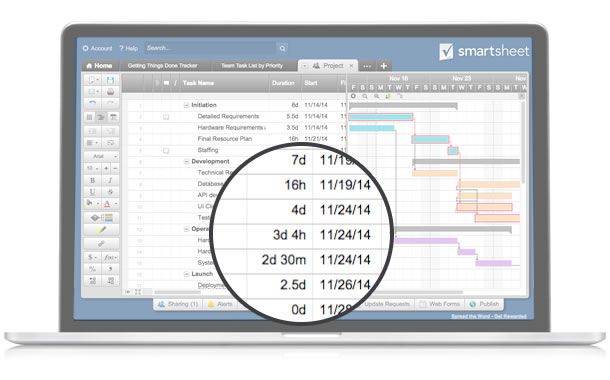
Specify duration of tasks in hours, minutes, days, weeks – even seconds – to manage with greater control
These new duration options also mean that milestones won’t be a full day anymore — you will have the ability to add zero-day milestones to your project schedules. You’ll also be able to set the hours in a working day.
And, the task duration features will support localization for our international users. For example, French speakers can add “2j” for two days, and Smartsheet will recognize that the “j” stands for the French word for days (jours).
Automatically Calculate Critical Path
In any given project, you may have hundreds of tasks and multiple dependencies. And it can be almost impossible to decipher which tasks are the ones that, if missed, will impact your completion date. In other words, the ones you really need to worry about to make sure you meet your deadline. With critical path, you can automatically identify these critical tasks.
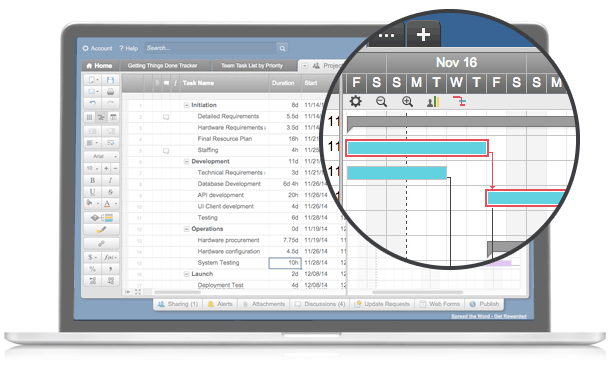
Automatically identify the tasks that are critical to meeting completion dates
All you’ll have to do is click the new critical path icon to automatically highlight the tasks that are critical to your project plan, shown in a Gantt chart. The critical path will change in real time, reflecting any changes in live data. And it will work with any color settings in your sheet. Stay tuned for more information on this forthcoming release.
Smartsheet Training
For Smartsheet users wishing to fully benefit from these improvements and who wish to convert their existing projects, see details of our forthcoming Smartsheet training courses and online support sessions
Talk to us about Managing the Changes within your organisation and about application integration set-up and training. We’d love to hear from you.
subscribe to our Tips & Tricks


