








Business Process
Automation Consultants

New in Smartsheet: Copy Workspaces, Share Reports, and Streamline Work on Mobile

Copy and reuse your best work with just a couple of clicks. Smartsheet’s newest features allow you to work smarter by jump-starting new projects without re-creating anything.
Copy folders and workspaces, send powerful reports to anyone without sharing underlying sheets, and access more time-saving features on mobile.
Here are three new ways to reuse your work:
Copy Workspaces, Complete with Cell Links
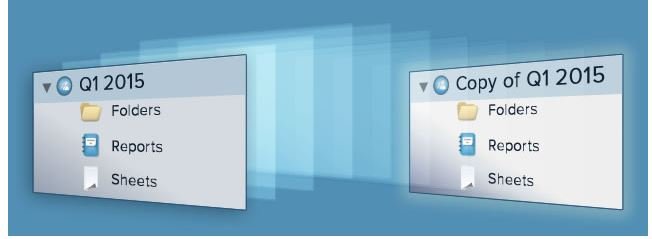
Copy your best folders and workspaces to make any project repeatable. Start new without re-creating anything — Smartsheet automatically copies over all of your reports and linked cells for you. No more manual copying and pasting.
To copy a folder or workspace:
- Go to the Home tab
- Select the workspace or folder you want to clone
- Right-click and select “Save As New”
- Choose the items you want to keep in your new folder or workspace
- Select “OK”
Cell links that are pointing to a sheet included in the folder or workspace that you are copying will be automatically remapped. As a result, the new cell links will point to copies rather than the originals.
See how to use cell linking in the video below;-
Create Reports to Share with Anyone
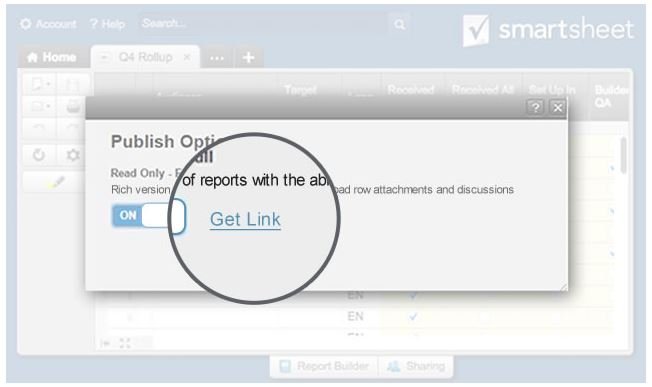
Highlight key information from your sheets in a report and share it to anyone (even non-Smartsheet users) with a simple URL link. Reports are created without sharing the underlying sheets and viewers don’t need to login to Smartsheet to access the report, letting you share your work more broadly and keep everyone up to date.
To share reports:
- Open the report you’d like to share
- Click the Publish button on the bottom of your report
- Click Get Link to generate a link for your report to share with anyone
Shift Seamlessly Between Mobile and Desktop
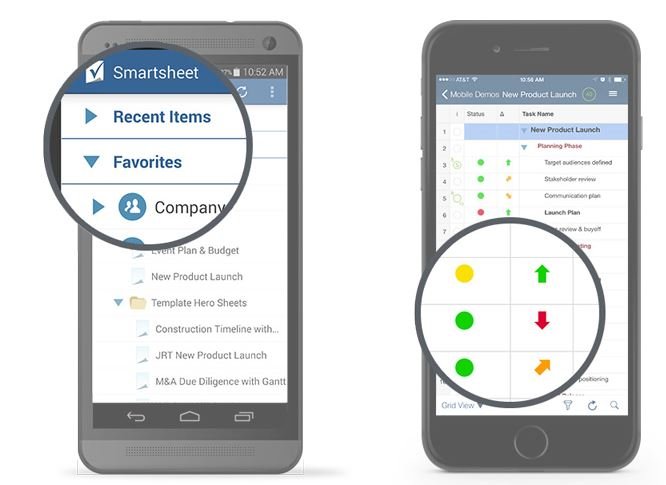
Three new iOS and Android Smartsheet mobile app features – applying filters, adding symbols, and accessing favorites – keep your work consistent across all devices and helps smooth the transition as you move between desktop and mobile.
Filters
The Smartsheet mobile app can now apply filters to the sheet grid, so you see the same rows on your mobile device that you do on your desktop.
To filter your sheet on iOS or Android:
- Open a sheet with a filter defined on the desktop
- Tap the filter icon on the lower toolbar
- Tap Turn Filter On
Symbols
Both the iOS and Android apps support all of the new symbols available on your desktop.
To edit columns and add symbols on iOS and Android:
- Click the Sheet Menu, which looks like three dashes, in the upper right-hand corner
- Select Edit Column Properties
- Modify the columns and their types as needed. The new symbols are available under theSymbols Column Type
Favorites
Access your favorite sheets faster with your Favorites list on mobile, located just below the Recent Items section of the home screen on iOS and Android.
To add or remove items from favorites on iOS and Android:
- Press and hold an item you’d like to add or remove from your Favorites list
- In the menu, tap ✮ on iOS and tap Add / Remove from Favorites on Android
With these new features, your best work lives on. Stay tuned for more Smartsheet improvements in the next feature release.


