








Business Process
Automation Consultants

URL Query String in Smartsheet
Looking to save time when filling forms in Smartsheet? Using a URL Query String in Smartsheet lets you prefill different default values for the same form.
It also lets you customize form links with query strings for instance in email shots to provide different default values for each recipient.

Case Example
Suppose you are managing a team logging support calls. You can provide everyone in your team with a link to the same form that prepopulates their individual name and department.
Simply create one base form, and then give each team member a different URL with parameters unique to them, providing them with a query string that prefills their name, department, and whatever other unique information you need them to provide. Each team member can easily log each support call with all the relevant information prefilled on the form.
How to Build a Query String to form a URL
To build the query string for a form URL:
- In the menu bar, select Forms > Manage Forms.
- Hover over the form you want to distribute with custom URLs.
- Select Copy Form URL.
- In a spreadsheet or any word processing application, paste the URL.
- At the end of the URL, type a question mark (?) For example:
app.smartsheet.com/b/form/6145a2c33c4e42e68bf53900e4a4845b?
- Type the value for the form field that you’d like to populate. For example:
app.smartsheet.com/b/form/6145a2c33c4e42e68bf53900e4a4845b?First-Name
- Type an equal sign (=)
- Type the value you want to set as the default. For example:
app.smartsheet.com/b/form/6145a2c33c4e42e68bf53900e4a4845b?First-Name=John
- To include multiple fields in the URL, join them with an ampersand (&). For example:
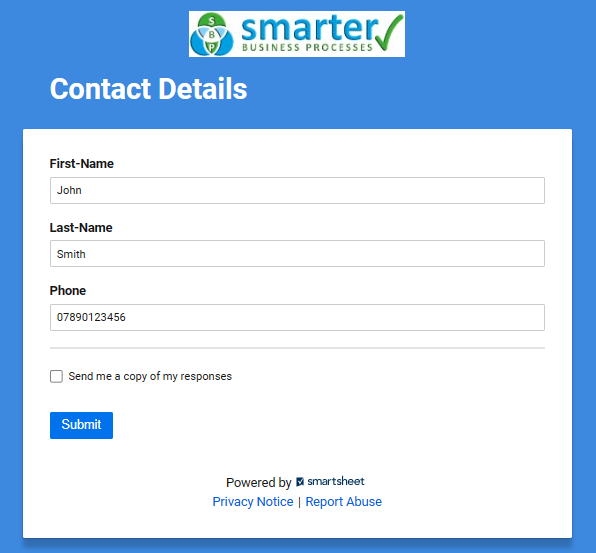
app.smartsheet.com/b/form/6145a2c33c4e42e68bf53900e4a4845b?First-Name=John&Last-Name=Smith
The image below shows what the form will look like with all requested values filled in.
Tips To Remember
A prefilled query string won’t work if users have to log in to access the form. Authentication clears any customization from the URL.
If your team needs to submit the same data again, they can use the browser’s back button to reload the form with the last submitted values, including prefilled values. Then, they can overwrite anything they need to change and resubmit the form.
In your form settings, remember to select ‘Allow submitter to email a copy of form submission option.’ Once this is set up, you can use query strings to automatically enter a default email address.
Want to know more?
To stay up to date with our tips and tricks, blogs, latest products and all the latest from Smartsheet.
Subscribe to our mailing list to stay up to date.
Read more about our Smarter Forms tool here, and watch our webinar on creating webforms in Smartsheet below.


